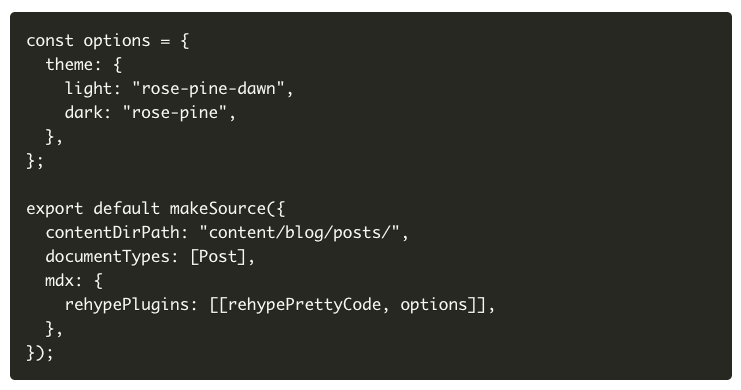
블로그 글에 렌더링된 코드블럭을 볼 때 마다 생성된 코드블럭이 못생겨서 아쉬움이 있었습니다.
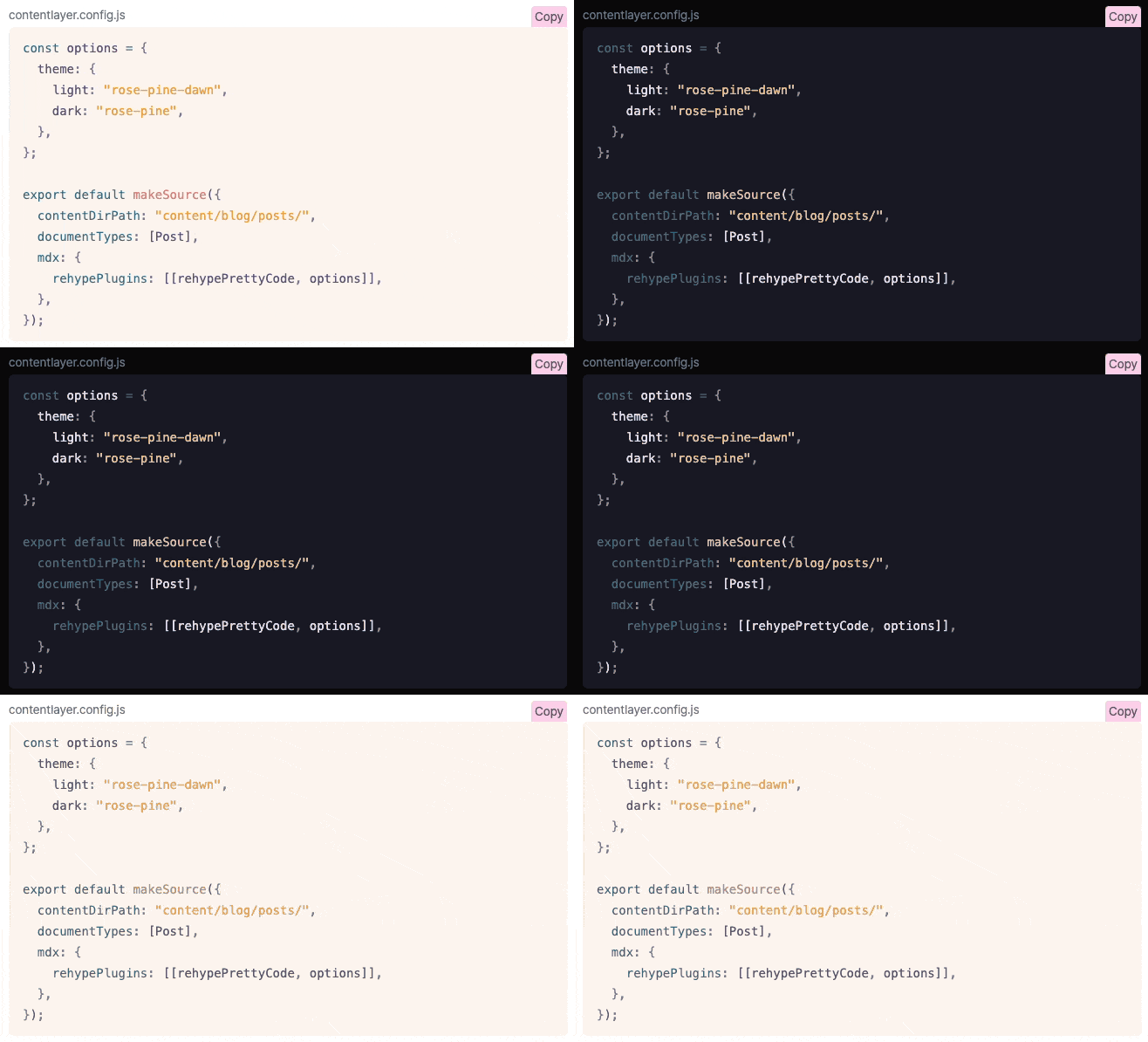
테마가 적용된 코드가 가독성이 좋기 때문에, 다음과 같은 기능을 추가했습니다.
- 다크모드를 지원하는 코드블럭 테마
- 파일 이름
- 코드 카피 버튼
| Before | After |
|---|---|
|
|
rehype-pretty-code로 테마 적용하기
여러 개발자분들의 블로그를 많이 참고했고, 그 중에 다크 테마가 코드블럭까지 지원하는 블로그들의 코드를 주로 본 결과 rehype-pretty-code패키지를 사용하여 코드블럭 스타일 커스텀을 하는 것을 알게 되었습니다.
1.2. next-contentlayer
컨텐츠를 코드에서 데이터로 사용하기 위해 사용한 라이브러리 입니다.
마크다운 컨텐츠가 데이터로 변경되기 전에 tree 구조인 node에 접근하여 요소를 조작하는 것이 가능합니다.
마크다운을 렌더링하기 전에 tree 구조로 변경되는데, 이때 rehype-pretty-code를 사용하여 코드블럭을 예쁘게 만들어줄 수 있습니다.
마크다운 형식의 단순한 컨텐츠가 rehype-pretty-code의 여러가지 css 스타일이 가미된 html 돔 데이터로 새로 만들어주는 것이죠.
import { defineDocumentType, makeSource } from "contentlayer/source-files";
import rehypePrettyCode from "rehype-pretty-code";

const Post = defineDocumentType(() => ({
  name: "Post",
  filePathPattern: `**/*.@(md|mdx)`,
  contentType: "mdx",
  fields: {
    title: {
      type: "string",
      description: "The title of the post",
      required: true,
    },
    date: {
      type: "date",
      description: "The date of the post",
      required: true,
    },
    description: {
      type: "string",
      description: "The summary of the post",
      required: true,
    },
    tags: {
      type: "list",
      of: {
        type: "string",
      },
      description: "The tags of the post",
      required: false,
    },
  },
}));
const options = {
  theme: {
    light: "rose-pine-dawn",
    dark: "rose-pine",
  },
};

export default makeSource({
  contentDirPath: "content/blog/posts/",
  documentTypes: [Post],
  mdx: {
    rehypePlugins: [[rehypePrettyCode, options]],
  },
});
options에 여러개의 테마를 심어줄 수 있습니다.
위처럼 적절히 2가지 테마를 골라 옵션으로 지정하면 컨텐츠에서 html 요소로 변한 코드 블럭 태그에 관련 css 클래스가 적용이 됩니다.
그 후에 global.css에서 각각 테마에 해당하는 클래스의 하위에 위치한 코드 블럭 관련 태그들에 대해 생성된 css variable로 스타일을 적용해주면 됩니다.
@tailwind base;
@tailwind components;
@tailwind utilities;

.light code span {
  color: var(--shiki-light);
  background-color: var(--shiki-light-bg);
}

.light pre {
  color: var(--shiki-light);
  background-color: var(--shiki-light-bg);
}

.dark code span {
  color: var(--shiki-dark);
  background-color: var(--shiki-dark-bg);
}

.dark pre {
  color: var(--shiki-dark);
  background-color: var(--shiki-dark-bg);
}
코드블럭에 UI 요소 추가하기
클립보드 copy button
코드블럭의 copy button은 사용자 인터렉션이 필요하기 때문에 마크다운으로 표현할 수가 없고, 컨텐츠가 데이터로 바뀌는 시점에 트리 노드에 접근해서 직접 추가해주어야 합니다.
() => (tree) => {
  visit(tree, (node) => {
    if (node?.type === "element" && node?.tagName === "figure") {
      if (!("data-rehype-pretty-code-figure" in node.properties)) {
        return;
      }

      for (const child of node.children) {
        if (child.tagName === "figcaption") {
          child.properties["raw"] = node.raw;
        }
      }
    }
  });
};
위 코드는 구글링하다 발견한 블로그에서 로직을 가져와 사용했고,
돔 트리를 순회할 때 if 문 내부 정도만 렌더링된 html 구조에 맞춰서 조건을 변경해주었습니다.
child.properties에 지정한 raw의 값은 클립보드에 복사될 때 string으로 변환되어 복사되는 값이 됩니다.
import { useMDXComponent } from "next-contentlayer/hooks";
import { Figcaption } from "@/app/components/mdx/mdx-figcaption";

type Props = {
  post: {
    body: {
      code: string;
    };
  };
};

const mdxComponents = {
  figcaption: Figcaption,
};

export default function MdxComponents({ post }: Props) {
  const MDXComponent = useMDXComponent(post?.body?.code || "");

  return <MDXComponent components={mdxComponents} />;
}
import { ReactNode } from "react";
import { CopyCodeButton } from "@/app/components/mdx/copy-code-button";

type Props = {
  children: ReactNode;
  raw: string;
};

export const Figcaption = ({ children, raw, ...props }: Props) => {
  return (
    <figcaption {...props} className={"text-center text-sm text-gray-500"}>
      <div className={"flex justify-between"}>
        {children}
        <CopyCodeButton text={raw} />
      </div>
    </figcaption>
  );
};
후기
처음 next-contentlayer가 동작하는 방식이 이해가 되지 않아 1차로 멘붕이 오고, 클립보드 카피에 필요한 내용을 raw로 넘겨주기 위해 트리를 순회하는 코드를 봤을 때 2차 멘붕이 왔지만 결과를 보니 보람있는 작업이었습니다.
다음에 코드를 봐도 이해할 수 있도록 까먹기 전에 리팩토링을 잘 해놔야겠습니다.ㅎㅎ
코드블럭 스타일링과 클립보드 카피 버튼을 추가하는 것에 집중했지만, 다음에는 코드블럭에 라인 넘버를 추가하거나, 특정 단어만 하이라이팅하 처리하는 것을 구현해보는 것도 재미있을 것 같습니다.
참고한 링크
- https://rehype-pretty.pages.dev/
- https://kilee.dev/blog/next-js-blog-codeblock-styling
- https://claritydev.net/blog/copy-to-clipboard-button-nextjs-mdx-rehype
- https://github.com/witch-factory/witch-next-blog
- https://nextjs.org/docs/app/building-your-application/configuring/mdx
- https://contentlayer.dev/docs/concepts/how-contentlayer-works-da5b2220#transformation-content-into-data